Customize Course Badges in TrainerCentral
In TrainerCentral, we offer a badge editor that lets you create digital badges to recognize your learners' effort and commitment. These visually appealing badges motivate learner progress and can be tailored to reflect their competence and skills.
Available on all paid plans (Starter and Professional).
- Select the course for which you want to provide a badge by clicking the course thumbnail icon.
- Navigate to the Settings tab and select the Rewards tab.
- Click Clone from library to choose an edited badge template from the library.
- Click Create Badge to design a new badge template from the available templates.
- Hover over the badge templates thumbnail to customize or preview them.
Select: To customize the badge template.
Preview: To view the badge.

Any changes you make to the template will be saved in real time.
Customizing badges
You can customize the badge template according to your requirements. The badge template consists of four components: Elements, Fields, Images, and Validation.
Let's explore them in detail.
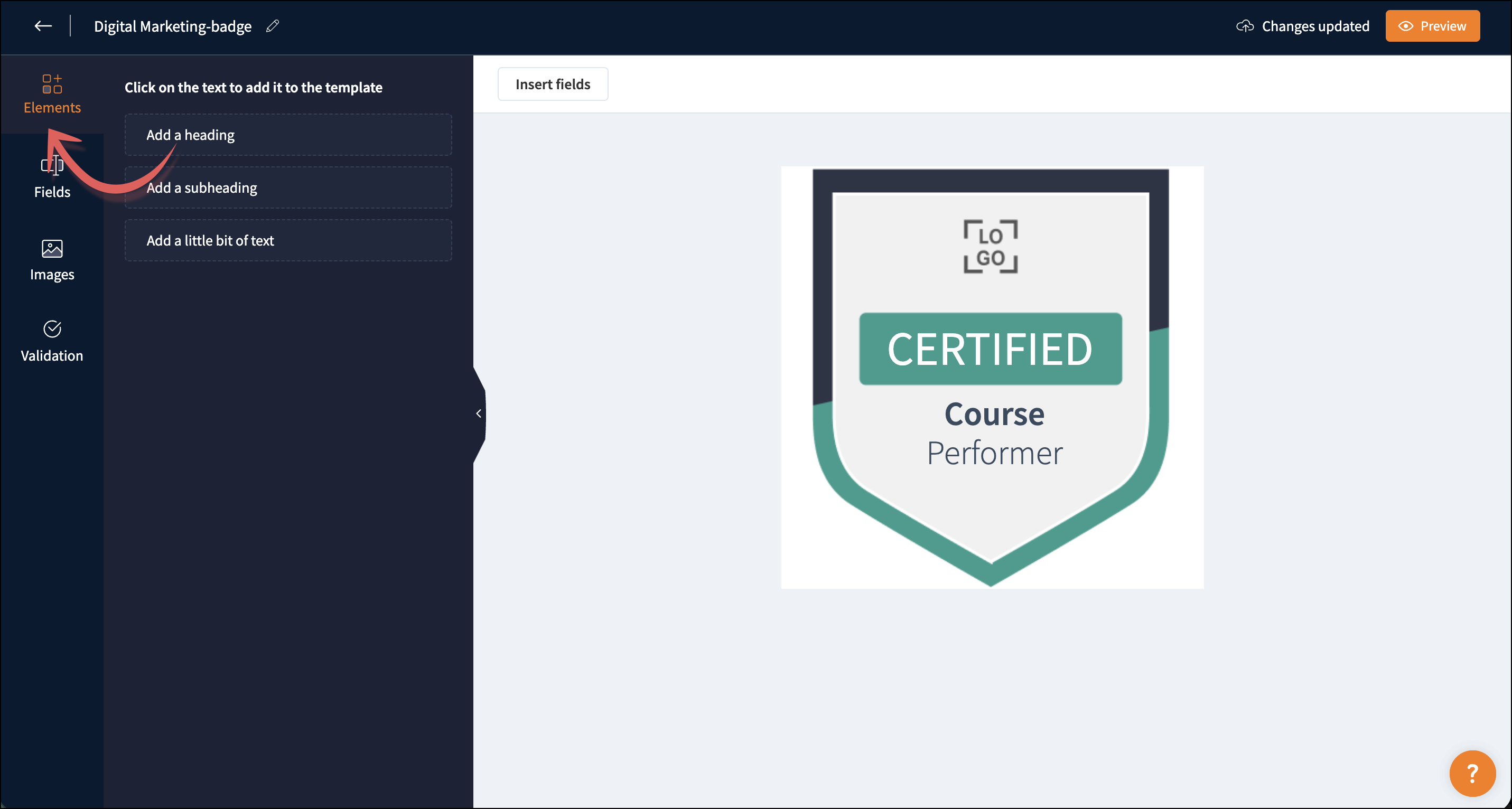
Elements
Customize the badge with predefined elements such as a heading, subheading, and body text. You can give your own title to the badge, add an academy tagline as the subheading, and also alter the existing body content.
Fields
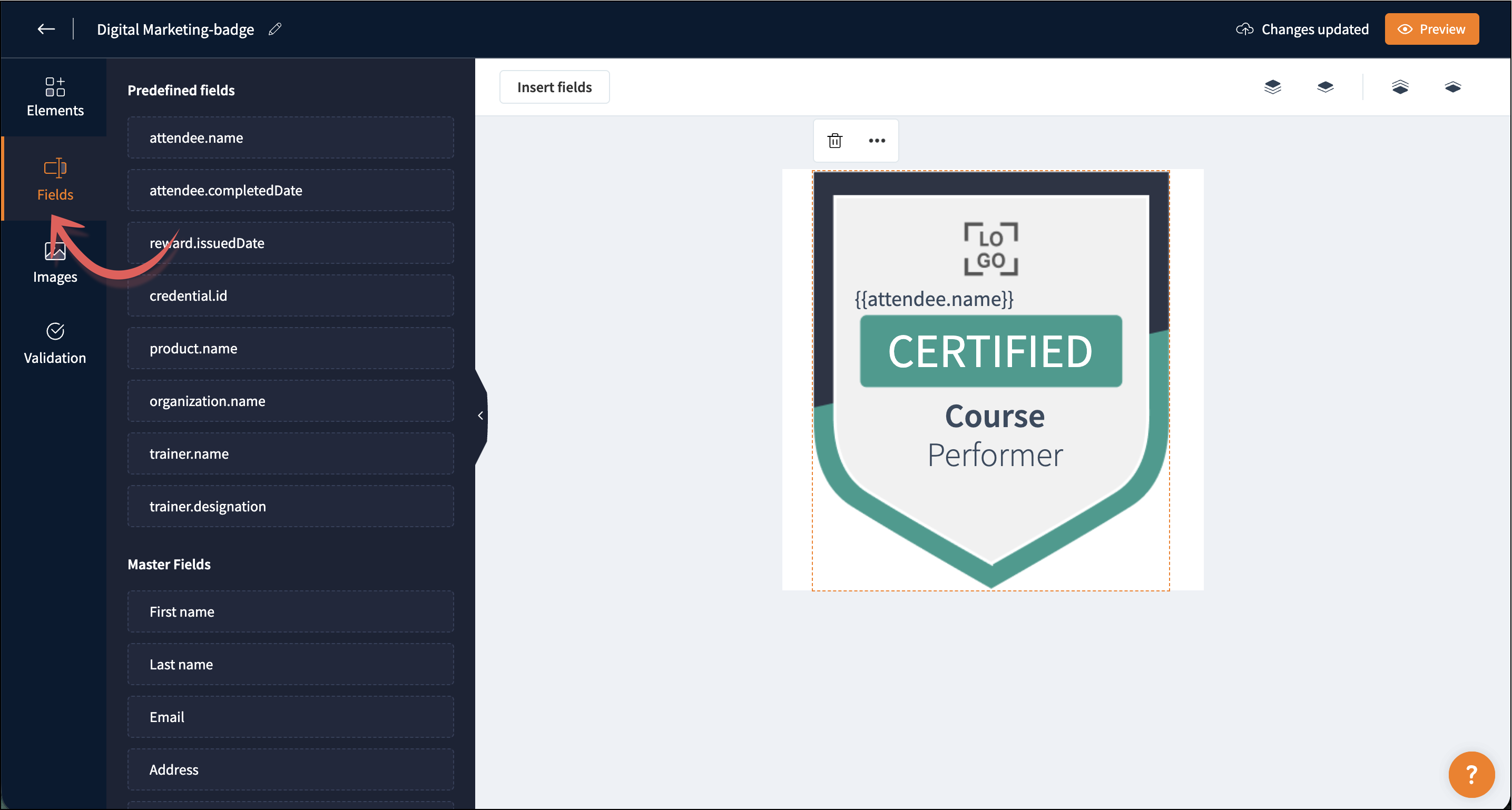
Include dynamic values in your badge template. Dynamic values refer to details that are automatically generated based on your course information. By inserting these fields in your badge template, the values will be auto-populated. For instance, attendee name, course name, and trainer name will be automatically generated.
You can also select Insert fields at the top-left corner to access the Fields tab.
There are four types of fields available, and they are listed below:
Predefined fields:
- Attendee name
- Attendee completed date
- Reward issued date
- Credential ID
- Product name
- Organization name
- Trainer name
- Trainer designation
Master fields:
The fields you set in the academy's Master fields will be displayed here.
Signup fields:
The fields you set in the academy's signup form will be displayed here.
The fields you set in the academy's Master fields will be displayed here.
Signup fields:
The fields you set in the academy's signup form will be displayed here.
Images
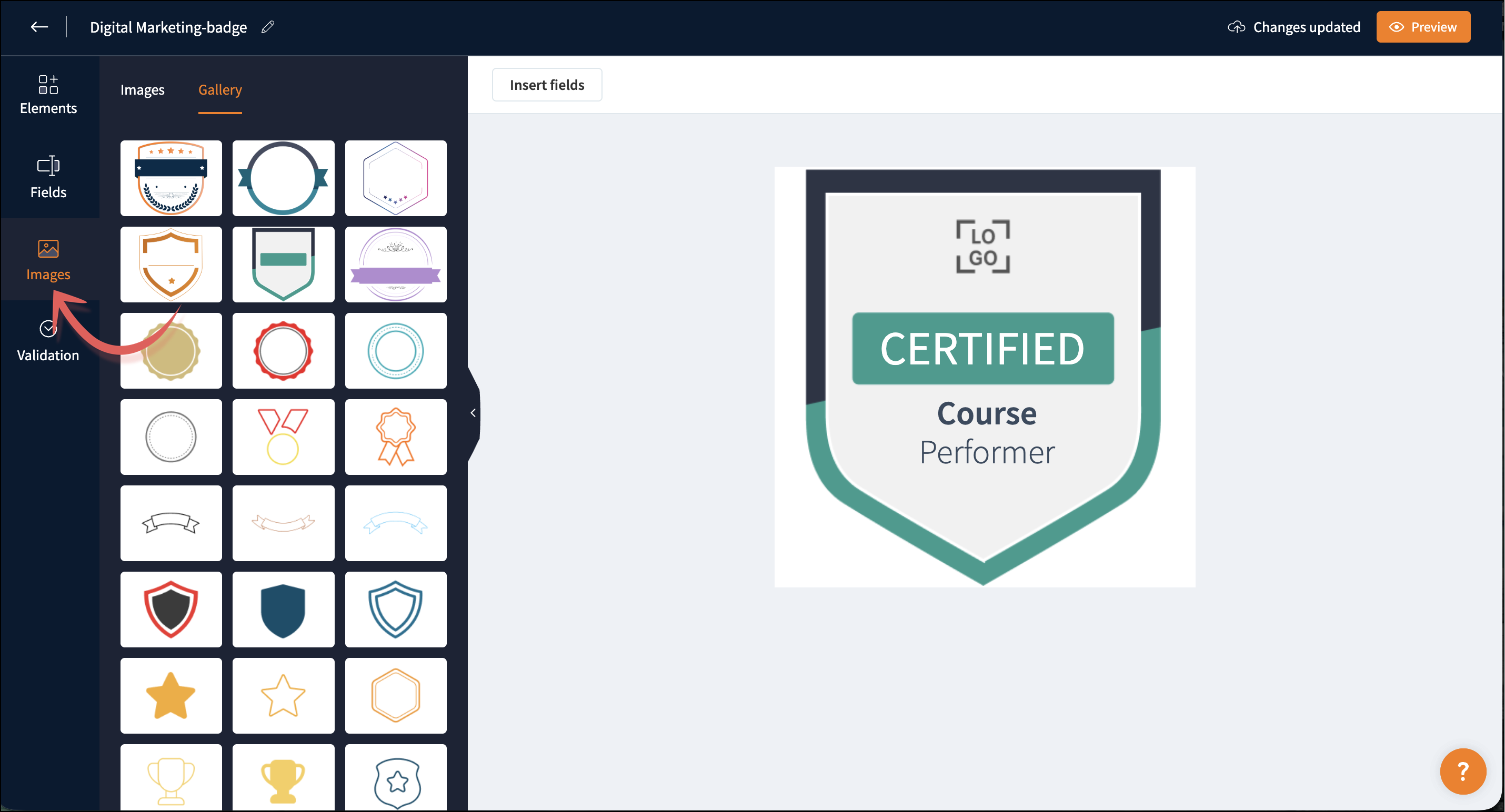
Design images to suit your academy's brand.
The three different options for inserting images are:
Images: To insert images from your academy's library.
Upload image: To upload images from your device.
Gallery: To insert the default stock images that are available in TrainerCentral.
The three different options for inserting images are:
Images: To insert images from your academy's library.
Upload image: To upload images from your device.
Gallery: To insert the default stock images that are available in TrainerCentral.
Validation
Add validation to badges to help others validate learners’ rewards. This validator redirects people to the certificate verification page, where learners' credentials can be verified.
The certificate verification page is a dedicated webpage for academies created through TrainerCentral, designed to authenticate their learners' rewards. Refer to this help article to learn more.
Credential ID
Generate a Credential ID to uniquely identify a learner’s badge. The system automatically generates this ID in TrainerCentral.
Add Credential ID: Display a link to the reward verification page at the bottom of the badge. Enable anyone to verify the badge’s authenticity when learners share their badges on LinkedIn or other social media platforms.
Generate a Credential ID to uniquely identify a learner’s badge. The system automatically generates this ID in TrainerCentral.
Add Credential ID: Display a link to the reward verification page at the bottom of the badge. Enable anyone to verify the badge’s authenticity when learners share their badges on LinkedIn or other social media platforms.
QR Code
Enable QR codes for learner badges to allow quick verification using a mobile device.
Add QR Code: Redirect users to the reward verification page when they scan the code, where the learner’s badge and all associated credentials are displayed.
Enable QR codes for learner badges to allow quick verification using a mobile device.
Add QR Code: Redirect users to the reward verification page when they scan the code, where the learner’s badge and all associated credentials are displayed.
Copy URL
Copy the URL to view the learner’s reward on the verification page.
Format text in badge templates
Format text options let you modify the text elements and fields based on your preferences. With this option, you can set the tone and style of the badges.
Here's how you can format a badge.
To format text options:
Select the required text.
Choose Font, and the font navigation drawer will open.
Customize the required font by using the options below:
Alignment—Align the text left, center, and right of the field.
Size indent—Indent the space between letters and words.
Text size—Increase or decrease font size.
Text color—Apply font color.
Text style—
These are the options available:
Emboldens the selected text
Italicizes the selected text
Underlines the selected text
Select the required text.
Choose Font, and the font navigation drawer will open.
Customize the required font by using the options below:
Alignment—Align the text left, center, and right of the field.
Size indent—Indent the space between letters and words.
Text size—Increase or decrease font size.
Text color—Apply font color.
Text style—
These are the options available:
Emboldens the selected text
Italicizes the selected text
Underlines the selected text
Up arrow icon—To move the selected field one position in front of all other fields.
Down arrow icon—to move the selected field one position behind all other fields.
Down arrow icon—to move the selected field one position behind all other fields.
Delete and duplicate text or image
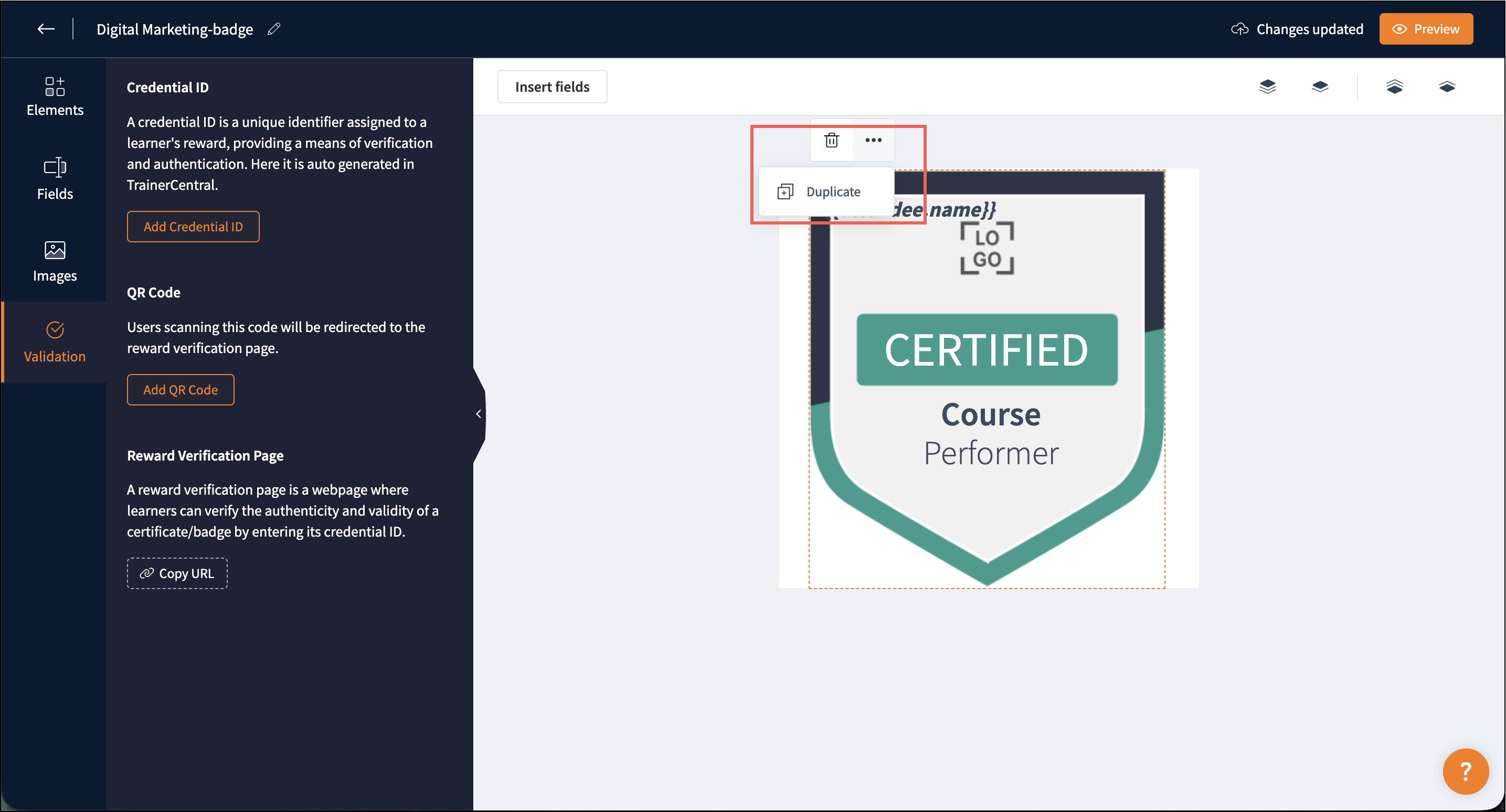
Select the text or image in the badge template.
A delete icon and the More Options -> Duplicate will be displayed.
Delete: To delete the text or image.
Duplicate: To duplicate text or an image.
A delete icon and the More Options -> Duplicate will be displayed.
Delete: To delete the text or image.
Duplicate: To duplicate text or an image.
Issue Badge
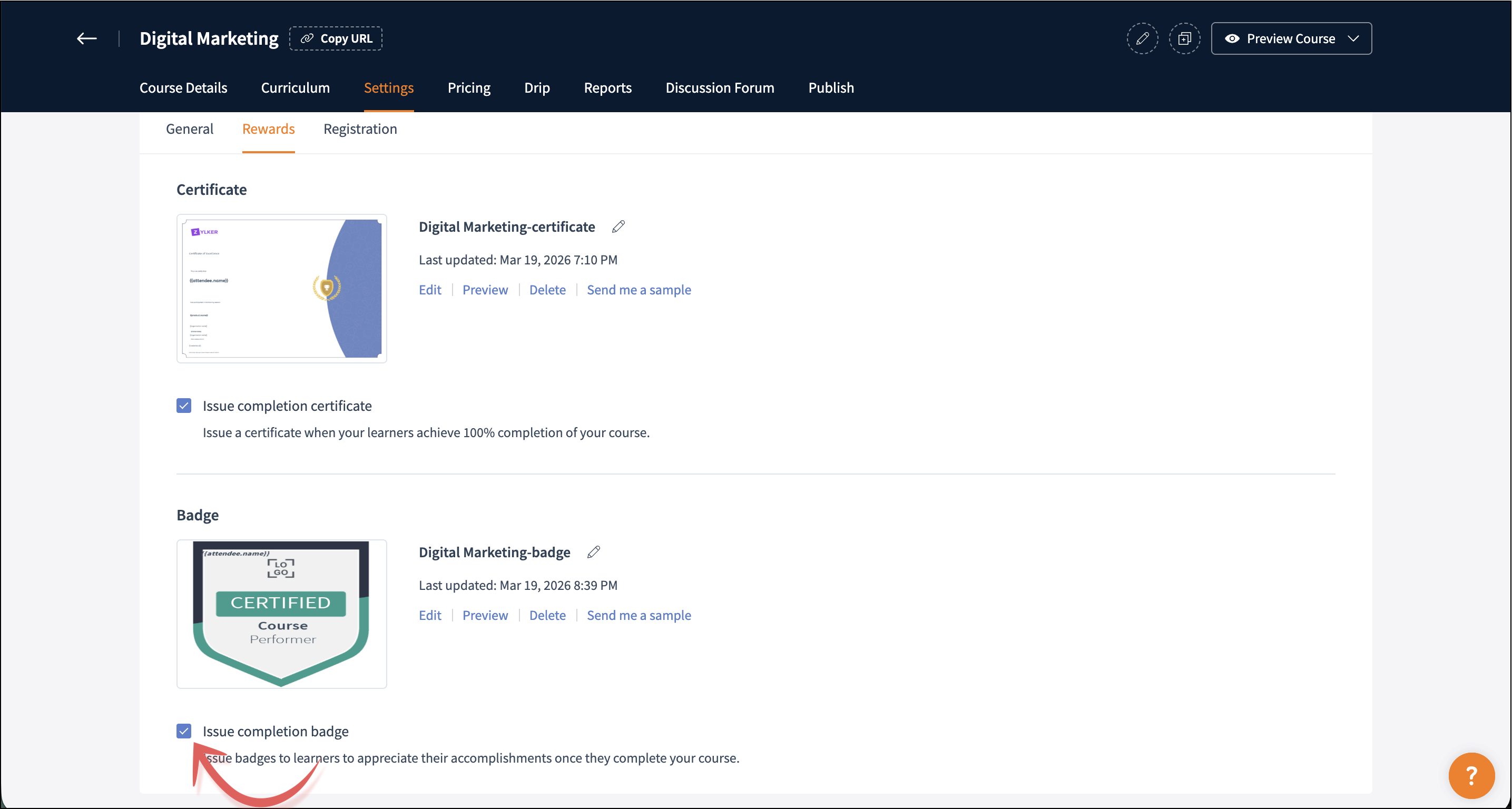
After customization, these are the options available on the reward page.
Edit: Edit the created badge template.
Preview: Preview the selected badge.
Delete: Delete the created badge.
Send me a sample: Email the selected badge to yourself to see how learners receive it.
Issue completion badge: Enable the Issue completion badge checkbox to send the selected badge to all learners.
Edit: Edit the created badge template.
Preview: Preview the selected badge.
Delete: Delete the created badge.
Send me a sample: Email the selected badge to yourself to see how learners receive it.
Issue completion badge: Enable the Issue completion badge checkbox to send the selected badge to all learners.