Learner View Customization

Learner view customization

In TrainerCentral, you can customize your academy’s look and feel for your learners.
You can personalize the following elements:
Course Viewer: Left-pane appearance, theme color, and font style 


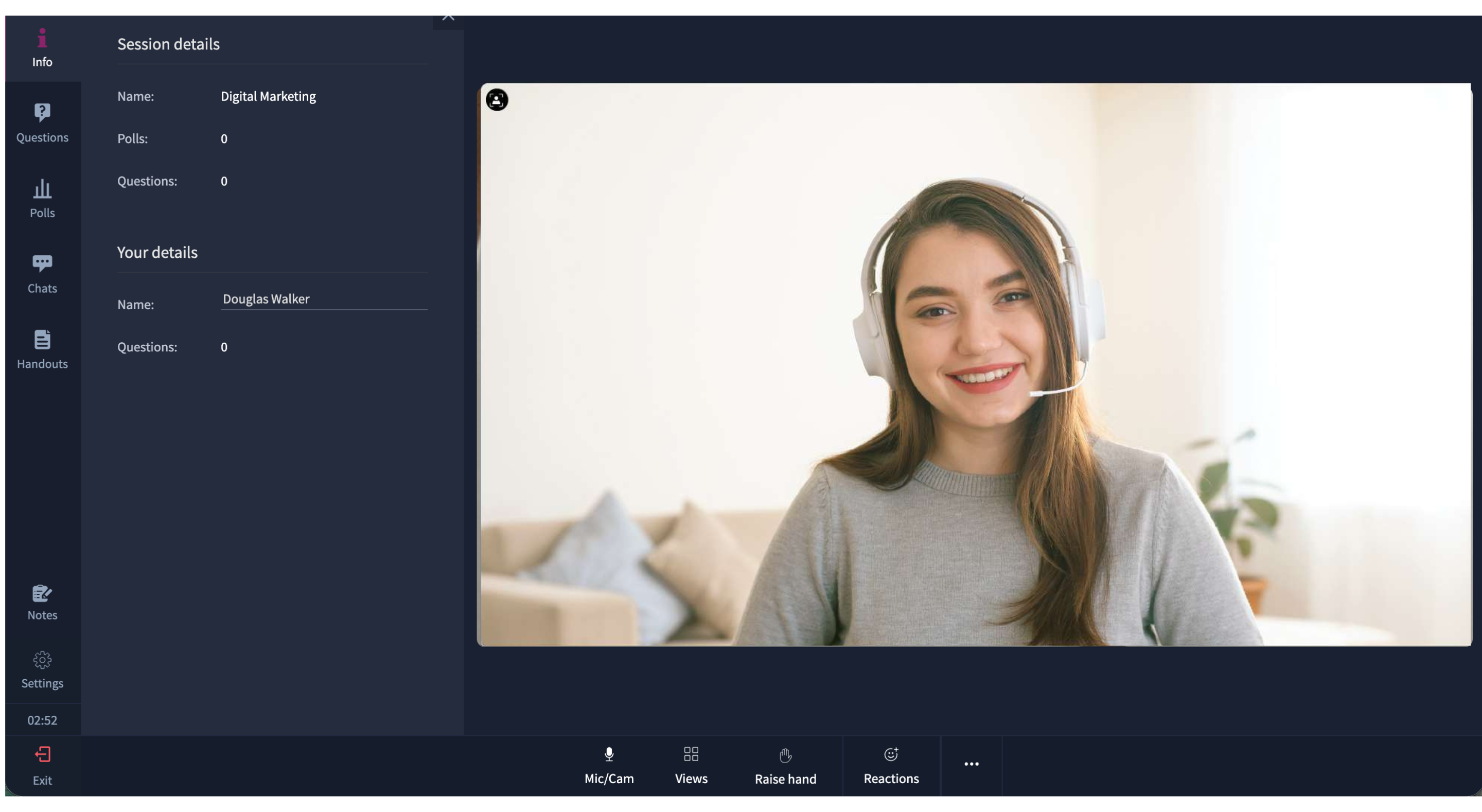
Session Viewer: Theme color and font style
To access the page:
  1. Navigate to Settings in the left pane.
  2. Select the Academy Settings tab and click the App Customization tab.


  3. Select Dark or Light under Theme to customize the color of the left pane.
  4. Choose the Theme color to customize academy elements such as buttons and other elements.
  5. Select the Font Family to be applied across the academy.


  6. Add Header and Footer Code under the code to display custom content at the top and bottom of every academy page.
  7.  Click Save to apply the customization.
Info
The code can be a tracker, embed, or plugin code. You can further customize the learner experience using custom scripts or by adding third-party scripts, such as Google Analytics and Translator widgets.
    • Related Articles

    • Track a learner's progress

      To monitor an individual learner's enrollment and report, a user with Super Admin or Admin privileges can follow the steps below. If you want to view the consolidated report of all learners' performance in a specific or all courses, refer to this ...
    • View Activities

      The Activities Tab in TrainerCentral helps you keep track of all the activities that have happened in your portal. You can choose from various filters to view particular activities in this tab and view data across any specific timeframe (like 30 or ...
    • Learner guide - View transaction history

      You can view the complete list of all ticket purchases and monetary transactions associated with your account under the Transactions tab. Under this tab, you can check out what courses you've purchased, ticket value, status of the payment, date of ...
    • Monitor Learner Progress in Groups

      In TrainerCentral, once you create a group and add learners to it, you can monitor their progress in the enrolled courses and live workshops. Click the Progress tab. The list of learners in the group will be displayed. Progress Search learner You can ...
    • View detailed analytics

      Overview You can see even more information about how your attendee responded to your session, including likes, ratings, attendee questions, and poll answers, in Detailed Analytics. The detailed analytics start with the basics: The size of the ...
