Managing and Customizing Reports
Reports provide an overview of learner activity in your academy. They offer insights into each learner’s rewards, enrolled courses, enrollment dates, and course progress.
 Available only on the Professional plan. The Professional trial plan allows up to five custom views.
Steps to access
Click the Reports tab in the left pane. The Reports window will be displayed with the Rewards and Course Progress tabs.
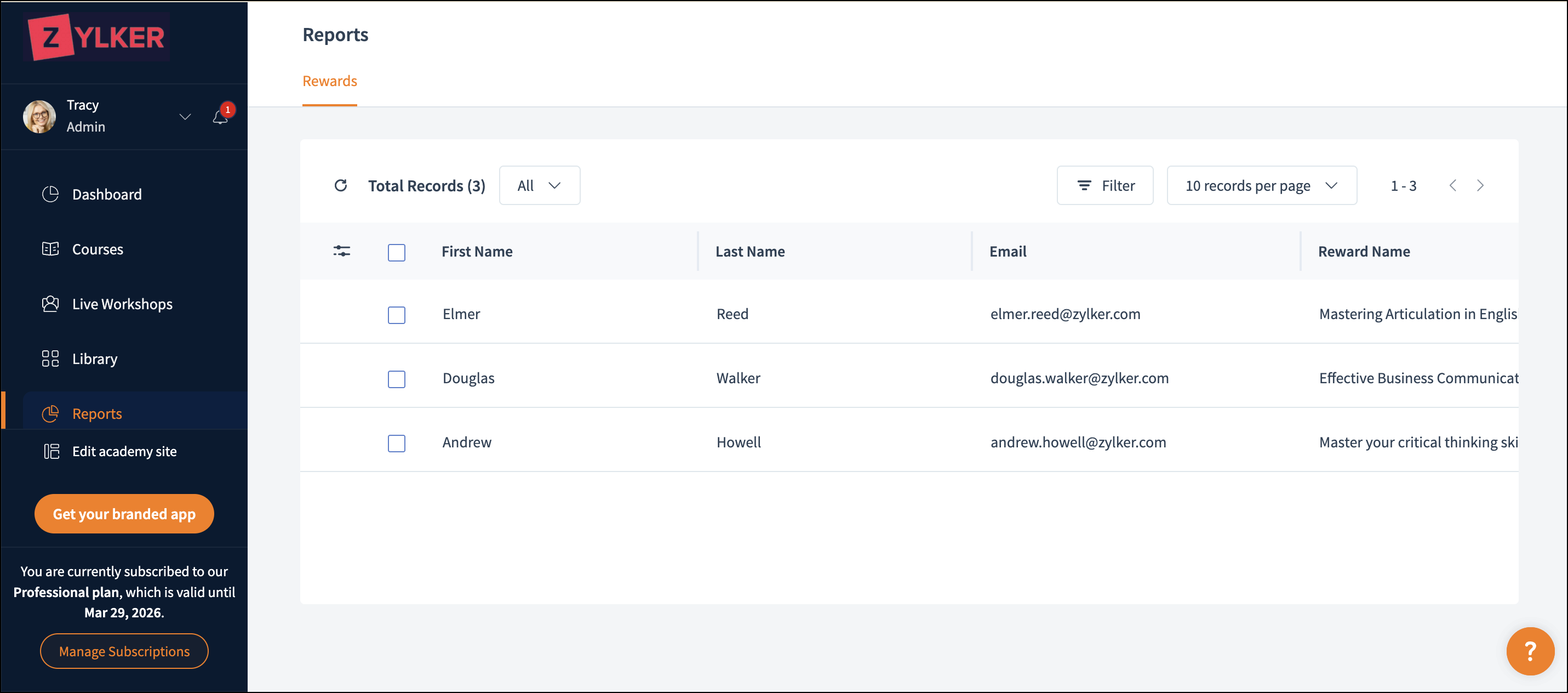
Available only on the Professional plan. The Professional trial plan allows up to five custom views.Steps to access
Click the Reports tab in the left pane. The Reports window will be displayed with the Rewards and Course Progress tabs.
Rewards
Rewards consist of both certificates and badges that recognize learners’ achievements and commitment. Here, you can view the list of learners who have been issued rewards in the academy.
Click the Rewards tab. Select the learner's record on the list. It will enable you to perform following actions:
Click the Rewards tab. Select the learner's record on the list. It will enable you to perform following actions:
- Resend Reward: You can resend the rewards for learners.
- Update Reward: You can replace the most recent version of the reward for learners. The updated reward will reflect on the learners’ end as well.
- Download Reward: You can download the learner's reward for your reference.
- Delete Reward: You can delete the learner's reward. It will be deleted on the learner's end as well.
You can create customized columns, views, and filters to organize learner records and quickly find the data you need.
Customize columns
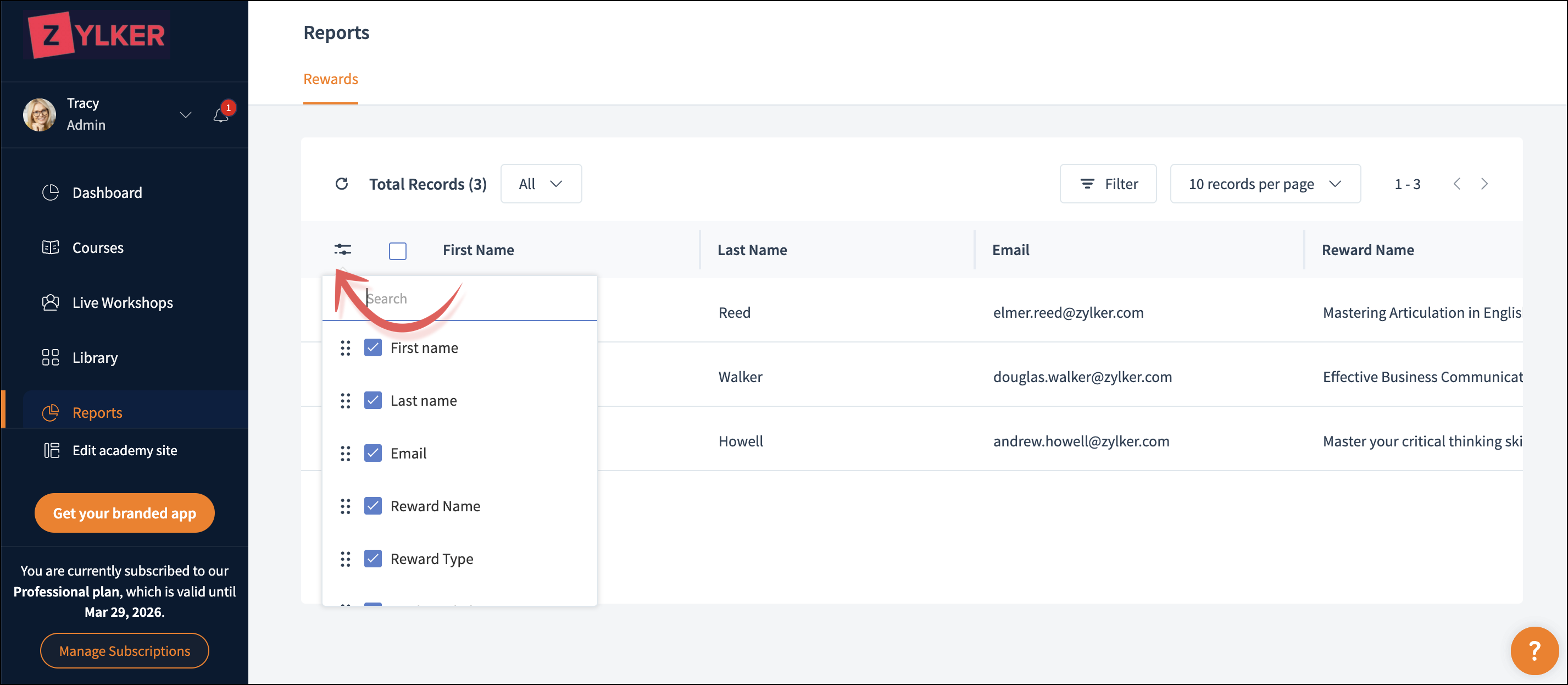
You can choose which columns to display on the page.
- Click the Settings icon.
- Select the columns you want to be displayed.
Apply Filters
Filters are a handy tool for quickly locating learners' records. You can also save and customize frequently used filters for future convenience.
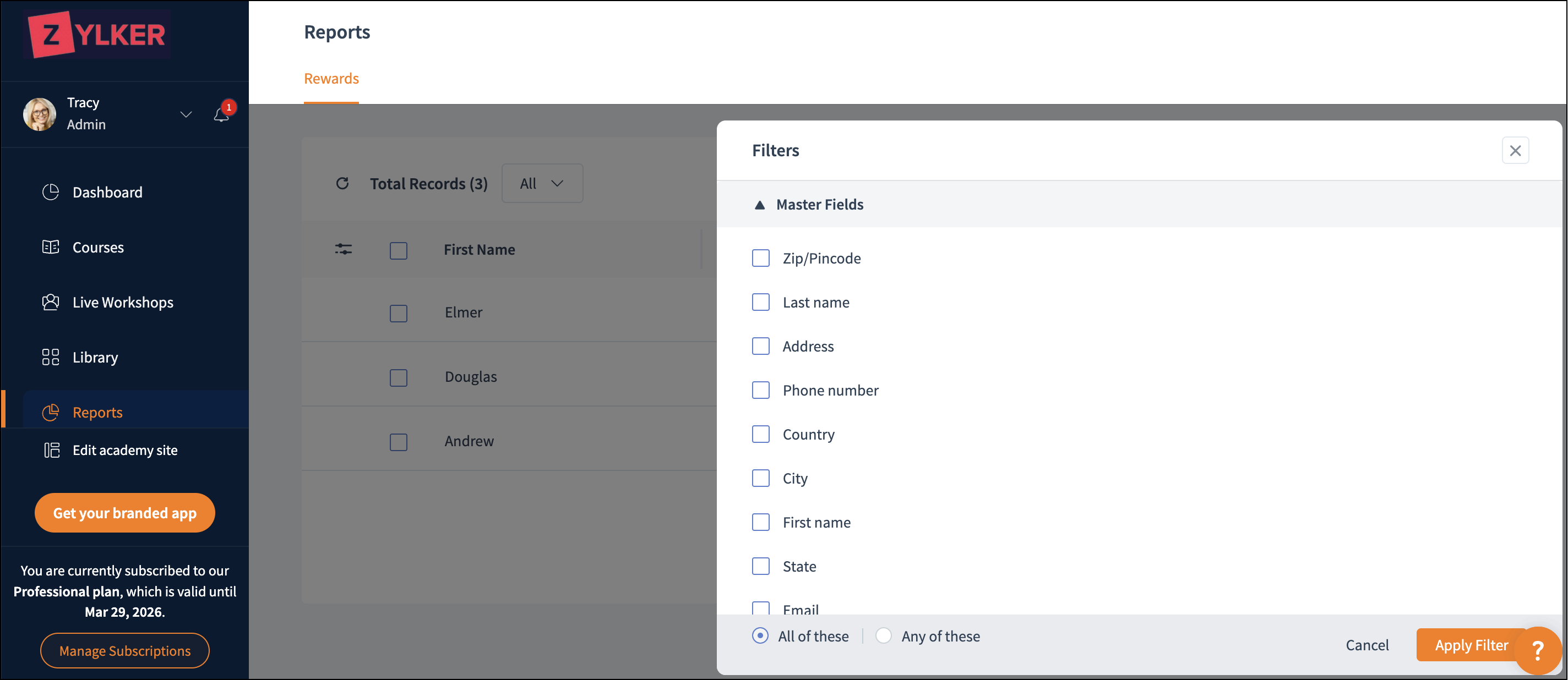
Click the filter icon.
The filter window will be displayed with the following sections:
Reward:
Expand Rewards to filter learner records based on rewards.
Select from the following options:
Click the filter icon.
The filter window will be displayed with the following sections:
Reward:
Expand Rewards to filter learner records based on rewards.
Select from the following options:
- Reward Type
- Reward ID
- Reward Name
- Date Issued
Master fields:
Expand Master Fields to filter learners' record based on the master fields.
Learners' status:
Expand Learner field to filter learners' record based on the learner status.
Choose one of the following options:
All of These: Select this option to view results that match all the conditions you’ve chosen.
Any of These: Select this option to view results that match at least one of your chosen conditions.
Expand Master Fields to filter learners' record based on the master fields.
Learners' status:
Expand Learner field to filter learners' record based on the learner status.
Choose one of the following options:
All of These: Select this option to view results that match all the conditions you’ve chosen.
Any of These: Select this option to view results that match at least one of your chosen conditions.
Create custom view
You can create a customized view of learner records based on your preferences. This view allows you to customize the records and columns, save the layout for future reference, and share it with other admins.
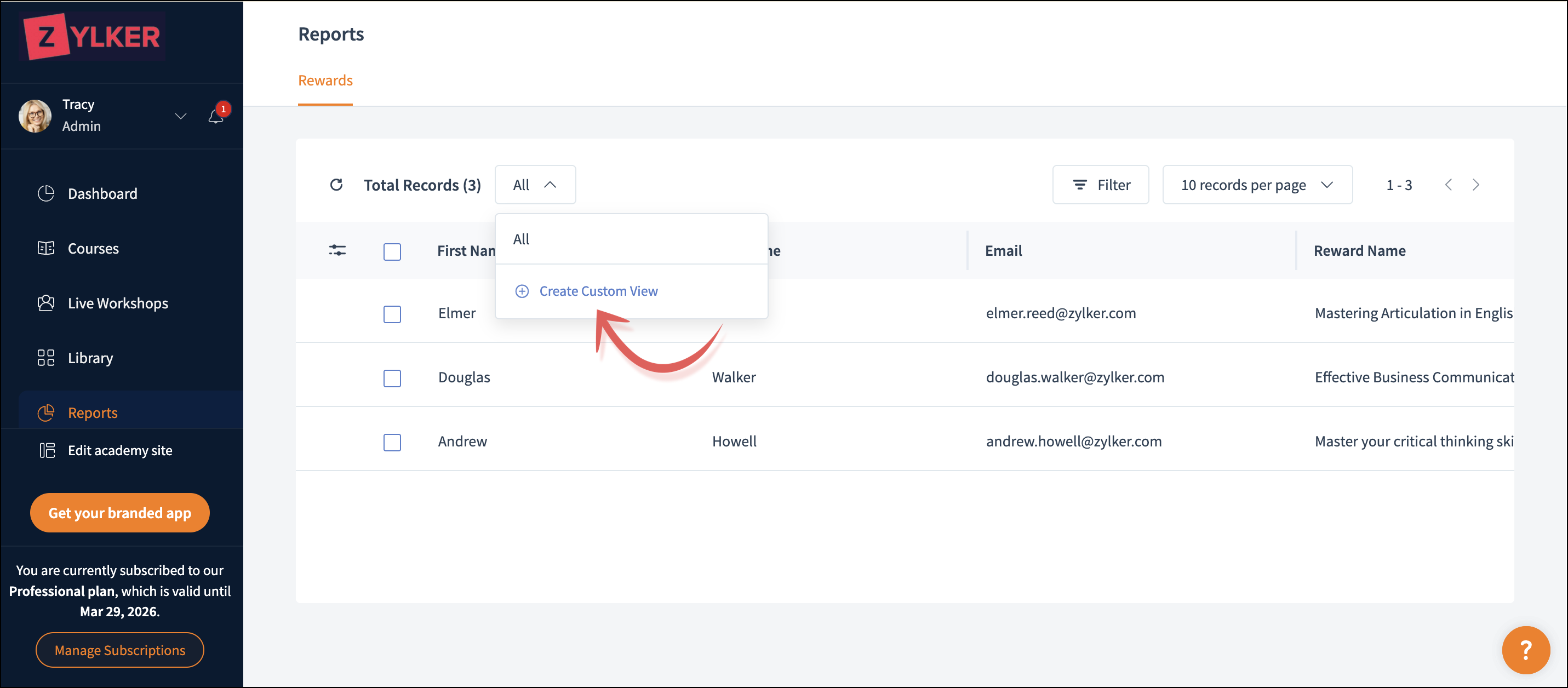
- Select the All drop-down.
- Choose Create Custom View. The Create Custom View window will be displayed.
- Enter a name for the Custom View.
- Click Add Criteria to add a condition. For example, Reward Type is Certificate.
- Click Add Group to add a combination of criteria. For example, Reward Type is Certificate and Reward Name is Certificate of Excellence.
- Enable Display custom columns under Settings to choose and display specific columns. The list of columns will be displayed and select the columns that you prefer to have in this view.
- Enable Share custom view with admins under Settings to share the view with all admins.
 Admins with whom the view is shared can access it under their All section.
 - Click Cancel if you don’t want to apply these customizations.
- Click Save to save your customized view.
View learner's reward details
You have an option to view the individual learner's reward details. Click the learner's record. The learner's reward details will be displayed.