Craft a consistent brand experience for a better learning journey
Hello trainers,
This month's spotlight feature is Learner View Customization.
A learner lands on your website and instantly connects with your brand. The design is polished, the messaging is clear, and everything feels thoughtfully built. They decide to enroll. But once they access the course, the experience feels disconnected. The colors and layout feel unfamiliar. The professional tone you carefully established seems to disappear.
Learners expect continuity, and when the learning environment doesn’t reflect your brand identity, engagement can drop, leading to a sharp decline in returning learners.
That's when the Learner View Customization feature comes in. With this feature, you can ensure a smooth visual transition from your website to your academy. Branding colors, consistent typography, and aligned design elements can create a cohesive journey that strengthens trust and reinforces your credibility.
Let's take a closer look at how you can customize the learner's view
Left pane appearance
Choose a left-pane color that enhances navigation and complements your brand identity. Because learners rely on the left pane to move through lessons and modules, its design directly impacts usability and visual comfort. Select the Dark theme for a modern, focused look or the Light theme for a clean, familiar reading experience based on your lessons and learners.
Theme color
Define your academy’s visual identity with a consistent theme color. The selected color is applied across key interactive elements such as buttons, highlights, and action components. Using your brand’s primary color strengthens recognition and ensures a cohesive, polished appearance.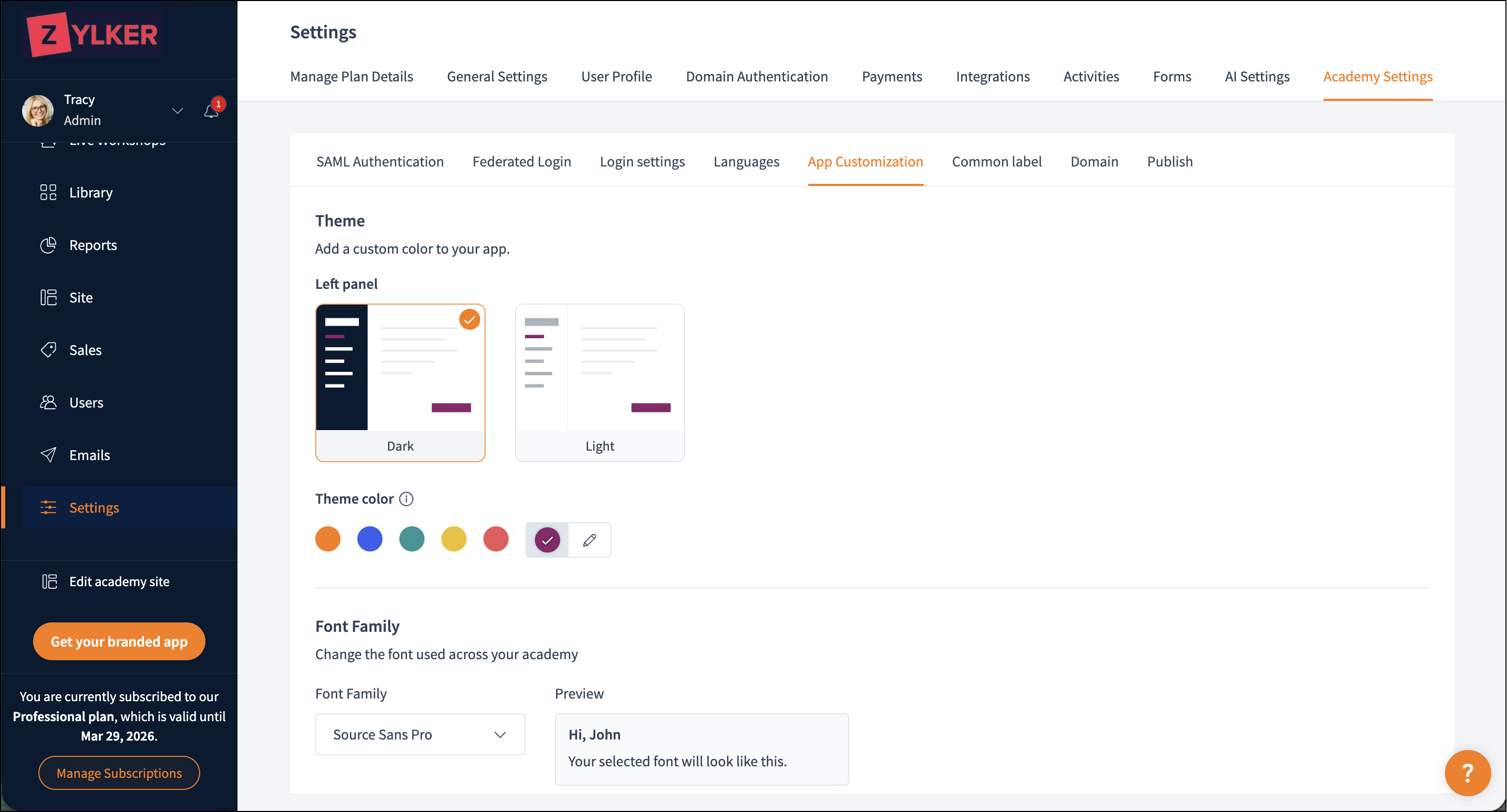
Font family
Set the tone of your academy through thoughtful typography. The font you choose influences readability and communicates personality, whether it's professional, modern, or friendly. Applying a consistent font across your academy creates visual harmony and enhances the learner experience.
Header and footer code
Enhance your platform by adding custom content to the top and bottom of every page. Use this feature to insert banners, announcements, tracking scripts, promotional messages, or additional branding elements across the entire experience.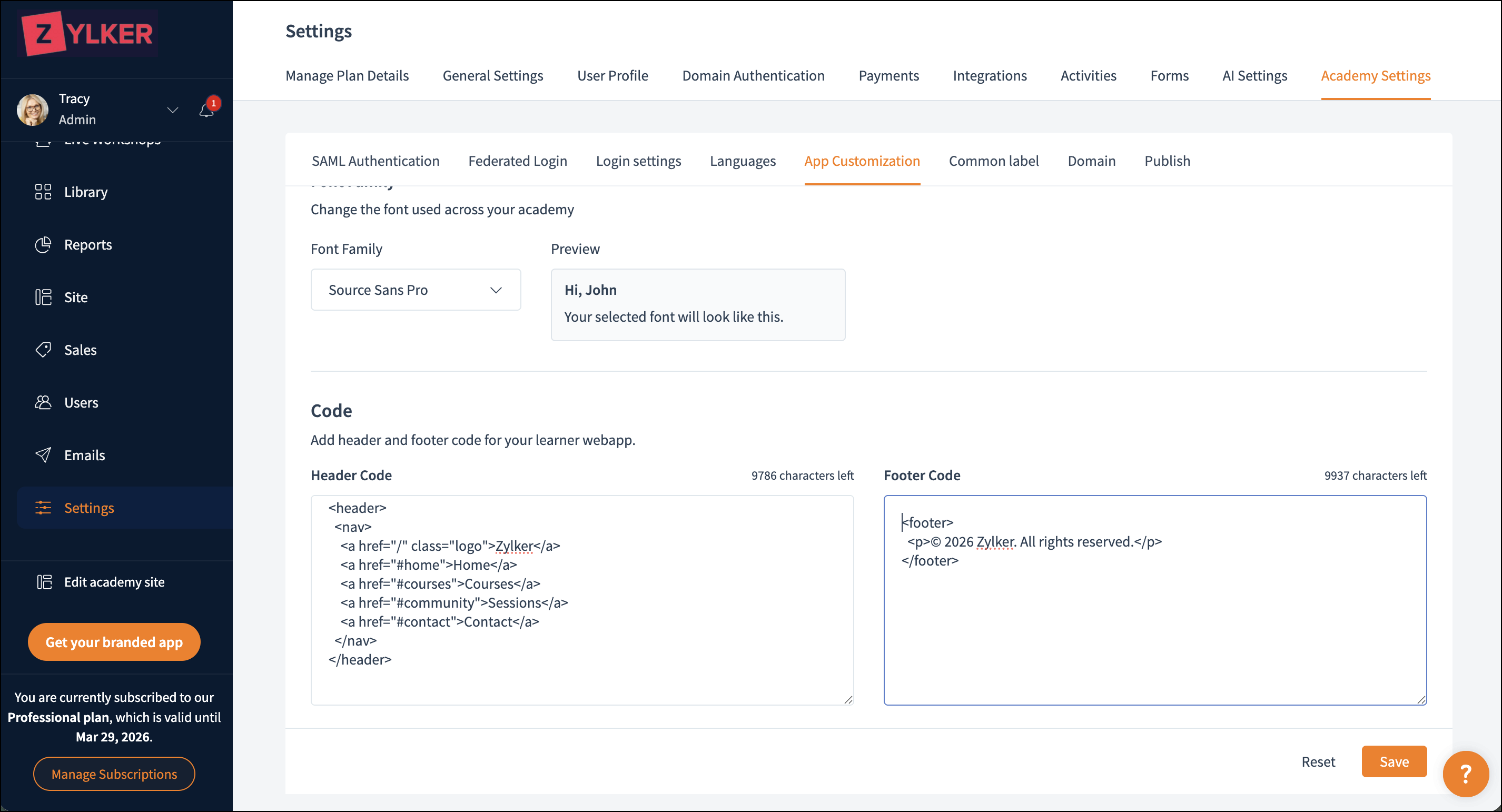
The tone and design you choose build your learners’ trust, keep them comfortable, and drive engagement.
Use customization strategically to leave a memorable impression and strengthen your brand.
To learn more about the learner view customization, refer to this help article. You can view our previous Spotlight post here.
If you have any questions, ask us in the comments, and we'll be happy to help.
Stay tuned for more features in Spotlight from TrainerCentral!