Add SCORM Courses to TrainerCentral
A SCORM course allows you to upload and deliver e-learning content created using external authoring tools. SCORM stands for Sharable Content Object Reference Model, a widely used standard that ensures learning content works seamlessly across different Learning Management Systems (LMS).

Add SCORM course
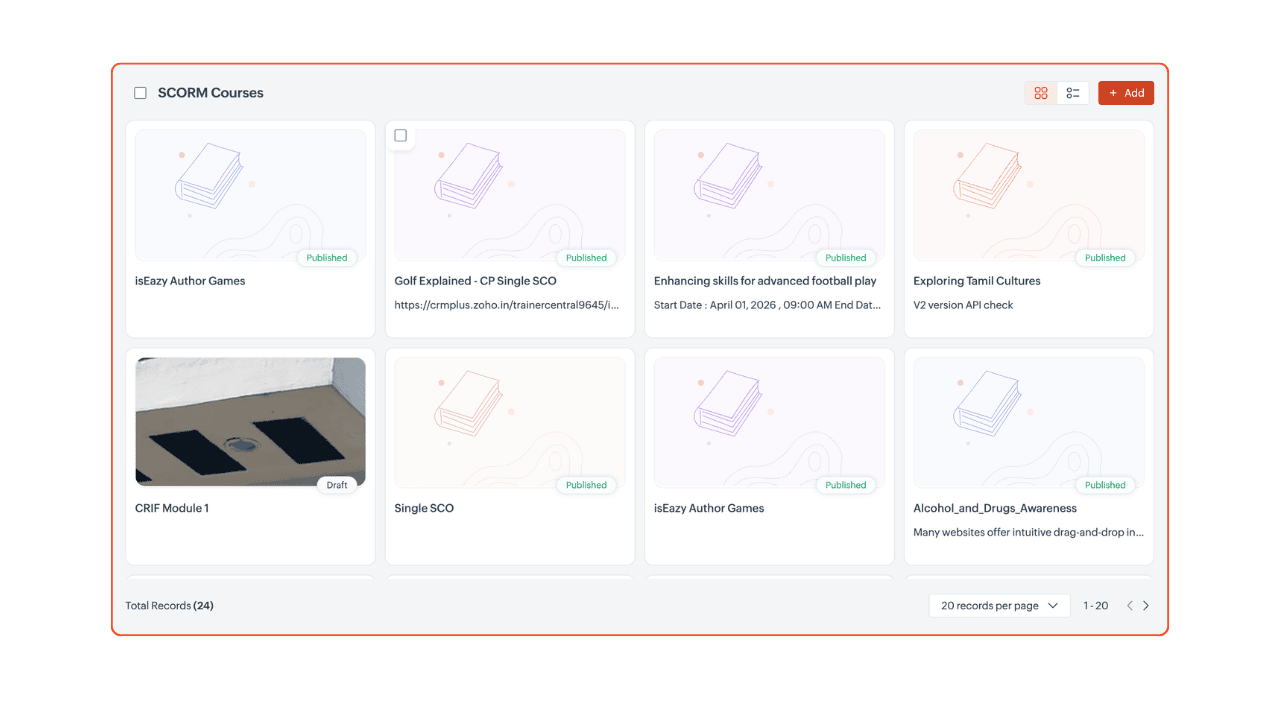
From the left pane, click Products. Navigate to and click SCORM Courses from the menu and click.
Click the + Add button in the top-right corner.
Upload your SCORM course as a ZIP file.
Update course details:
Click the edit icon in the top-right corner. The edit course page will be displayed.
Enter the course details:
Name: The title of the SCORM course
Subtitle: A one-line description of the course
Description: A brief overview that provides more details about the course
Categories: Select the categories that best fit your course.
3. Click Edit to update the changes.
Upload Thumbnail image
A thumbnail helps visually represent your course in listings and on the course details page.
Scroll to the Thumbnail section and click Upload Image.Select an image from your device.
Click Confirm to set the selected image as the course's thumbnail.
Configure SCORM course visibility
Set the estimated time for a SCORM course
You can display an estimated completion time to help learners understand how long the course may take.
Navigate to Settings > General.
Select Set estimated time for this SCORM course.
Enter the estimated duration in hours and minutes.
Click Save.
The estimated time is displayed on the course details page, helping learners plan their learning schedule before they enroll.
Rewards
You can issue certificates and badges to learners who complete a SCORM course. Rewards for SCORM courses work the same way as rewards for other courses.
To configure rewards, go to Settings > Rewards.
Certificates
Enable Issue completion certificate to automatically issue a certificate when a learner completes the SCORM course.
You can:
Edit the certificate template
Preview the certificate
Send a sample certificate
Set certificate expiration
Enable Set certificate expiration to specify when issued certificates expire. Once a certificate expires, learners can no longer view or download it.
Certificate expiration can be configured using:
Duration-based expiry
Fixed date expiry
For more information on customizing certificate templates, see Customize course certificates in TrainerCentral.
Badges
You can issue badges to recognize learners when they complete the SCORM course. You can create a new badge or clone an existing badge from the library.
For more information, see Customize course badges in TrainerCentral.