Report your issue with the built-in screen recorder
TrainerCentral enables you to report issues and provide visual feedback through contextual recordings. These issues and recordings are handled by TrainerCentral support team to enable faster and quicker solutions.
What are the features of a screen recorder?
It offers the following benefits, along with the contextual recordings:
What are the features of a screen recorder?
It offers the following benefits, along with the contextual recordings:
- Elaborate on your issue with voice recordings, annotations, and more.
- Mask sensitive aspects of your recording with the video editor.
- Share the recording with our support team with just a click.
Start your recording
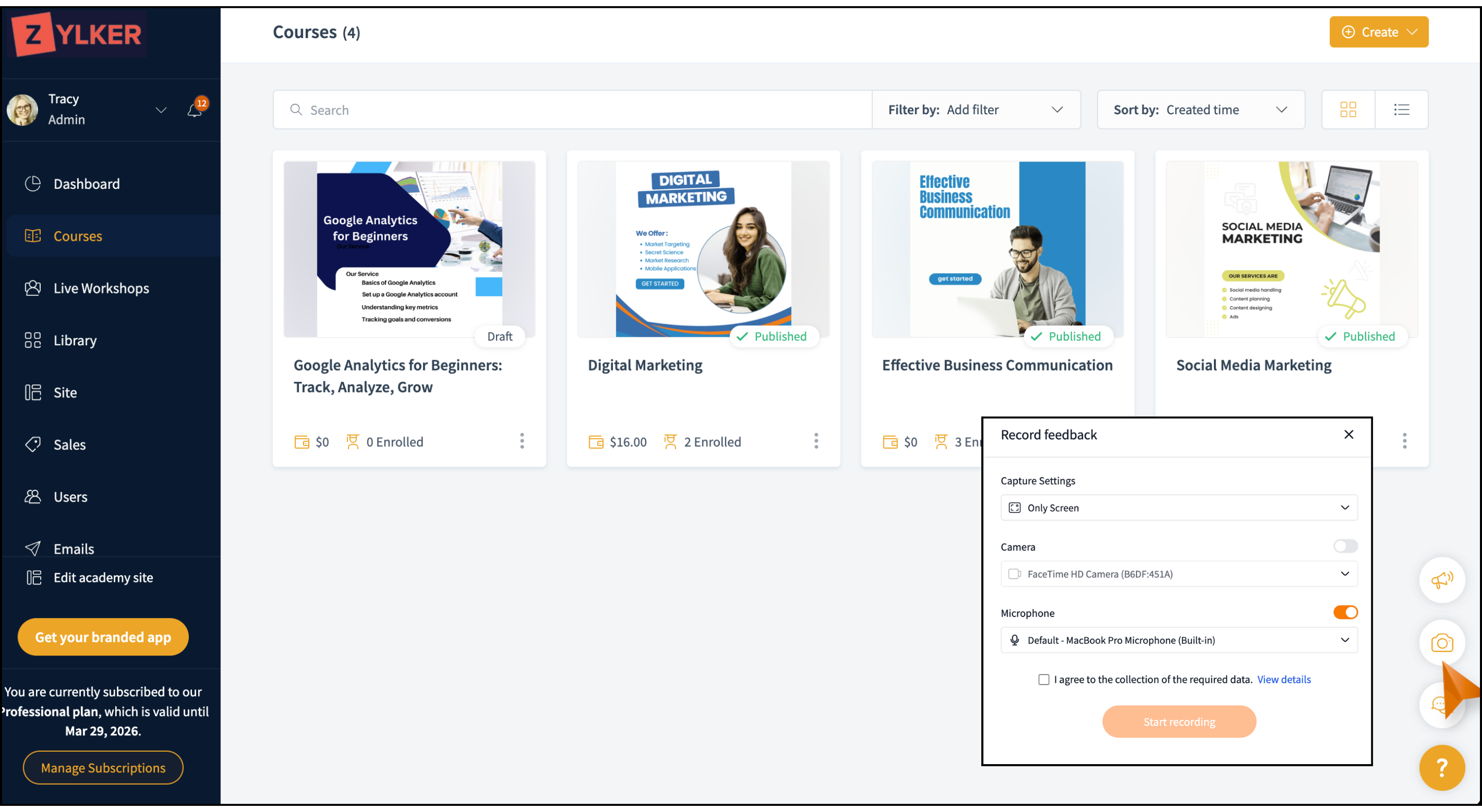
- Click the help icon on the right to access the screen recorder icon. The Record Feedback window will be displayed.
- Select the Capture Settings as Screen+Webcam, Only Screen, or Only Webcam.
- Select the required Camera from the dropdown.
- Select the required Microphone from the dropdown.
- Agree to the privacy policy and provide your consent.
- Click View Details to learn more about the privacy policy.
- Click Start recording to initiate the recording.
- Along with screen recording—and your consent—the tool also collects data such as browser console logs, environment details (screen resolution, browser, and OS version), audio recordings, video performance metrics, and IP address information for a quicker solution.
- Do not close or reload the tab while recording the issue. If you do, the recording will not be saved, and you will have to start the process from the beginning. It is also important to note that changing the profile in the browser will prevent log consoles from being saved.
- Your recording session has a time limit of five minutes.
Record your issue
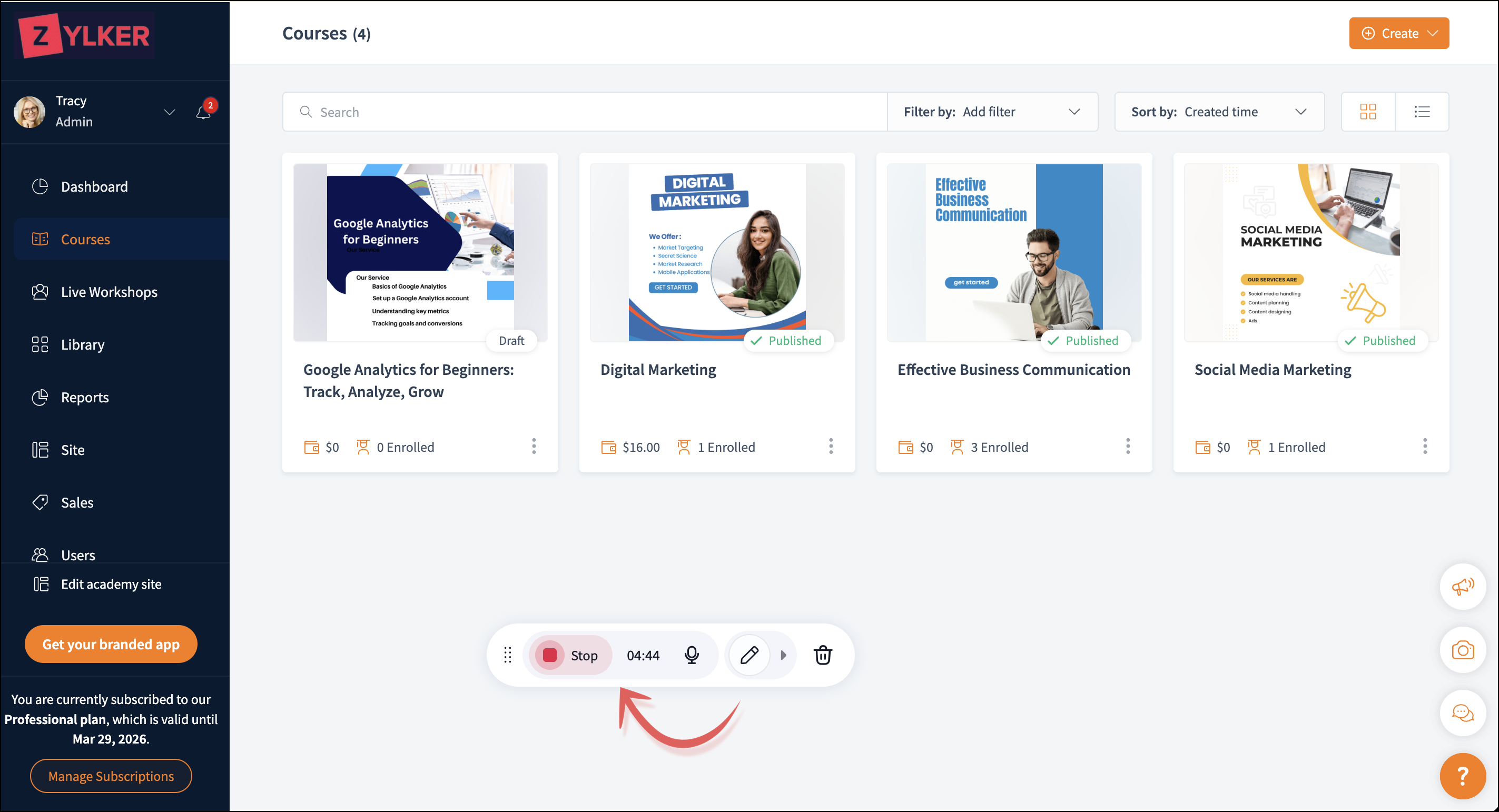
You can record the issue and share it with the support team. Additionally, you can also record your audio, annotate the screen, or delete it.
Click Stop to pause the recording. The Save Feedback window will be displayed.
Click Stop to pause the recording. The Save Feedback window will be displayed.
Share feedback
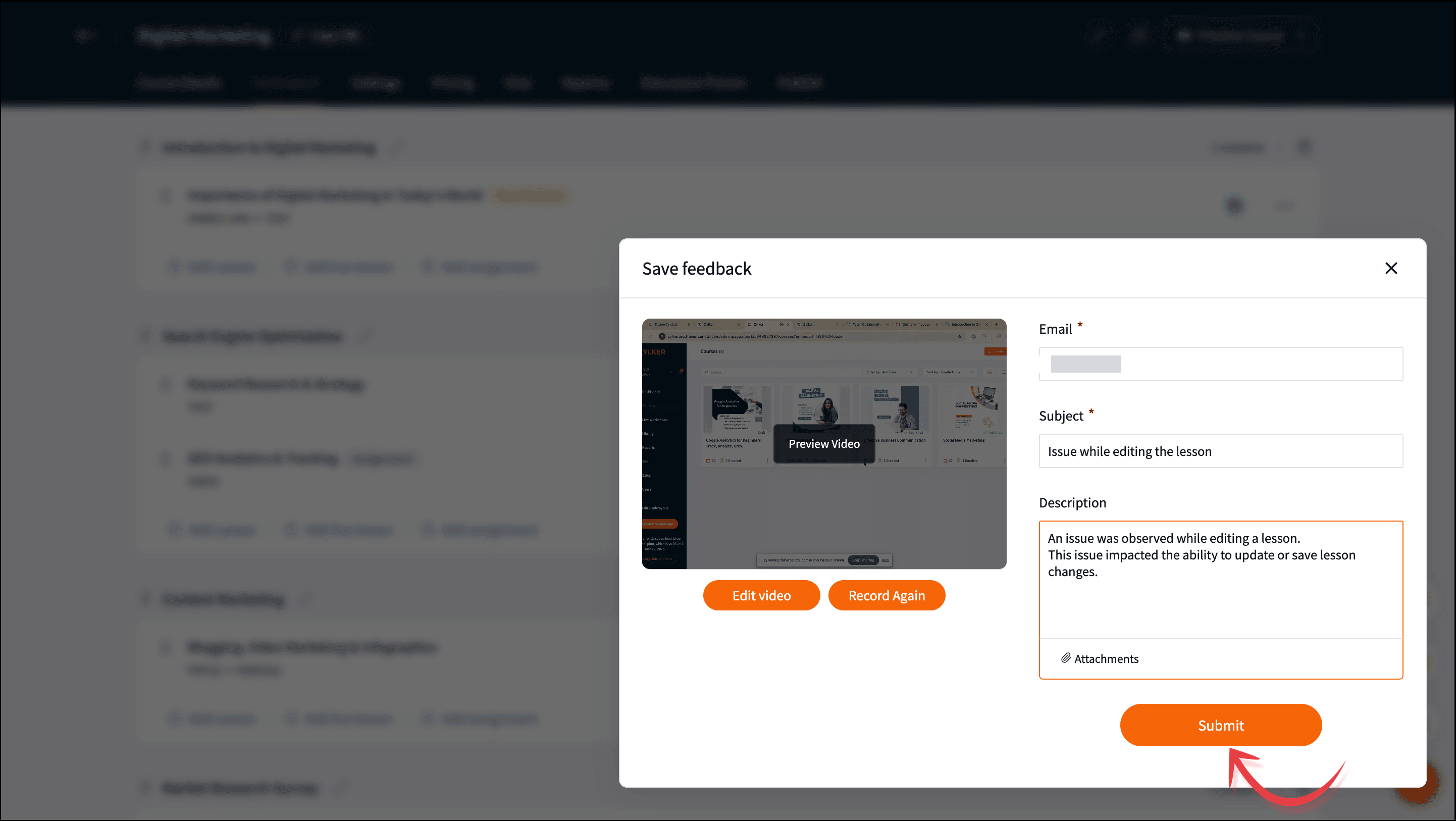
In the Save Feedback window, the following buttons will be available:
Preview Video: Preview the video to understand how the support team views it.
Edit Video: Edit the video to enhance your recording with annotations, add voice overlays and more. To learn how to edit, refer to the below section.
Record Again: Record the video again, and the older version of the video will be deleted.
Once you're done, you can share your final recording with our support team.
Edit Video: Edit the video to enhance your recording with annotations, add voice overlays and more. To learn how to edit, refer to the below section.
Record Again: Record the video again, and the older version of the video will be deleted.
Once you're done, you can share your final recording with our support team.
- Enter a relevant Subject and Description.
- Click the Attachments if you would like to attach screenshots ( up to five ) to help clarify the issue in your recording.
- Click Submit to complete your support request.
Visual Editor
After the recording, you can also edit it using the visual editor to represent your issue clearly to the support team.
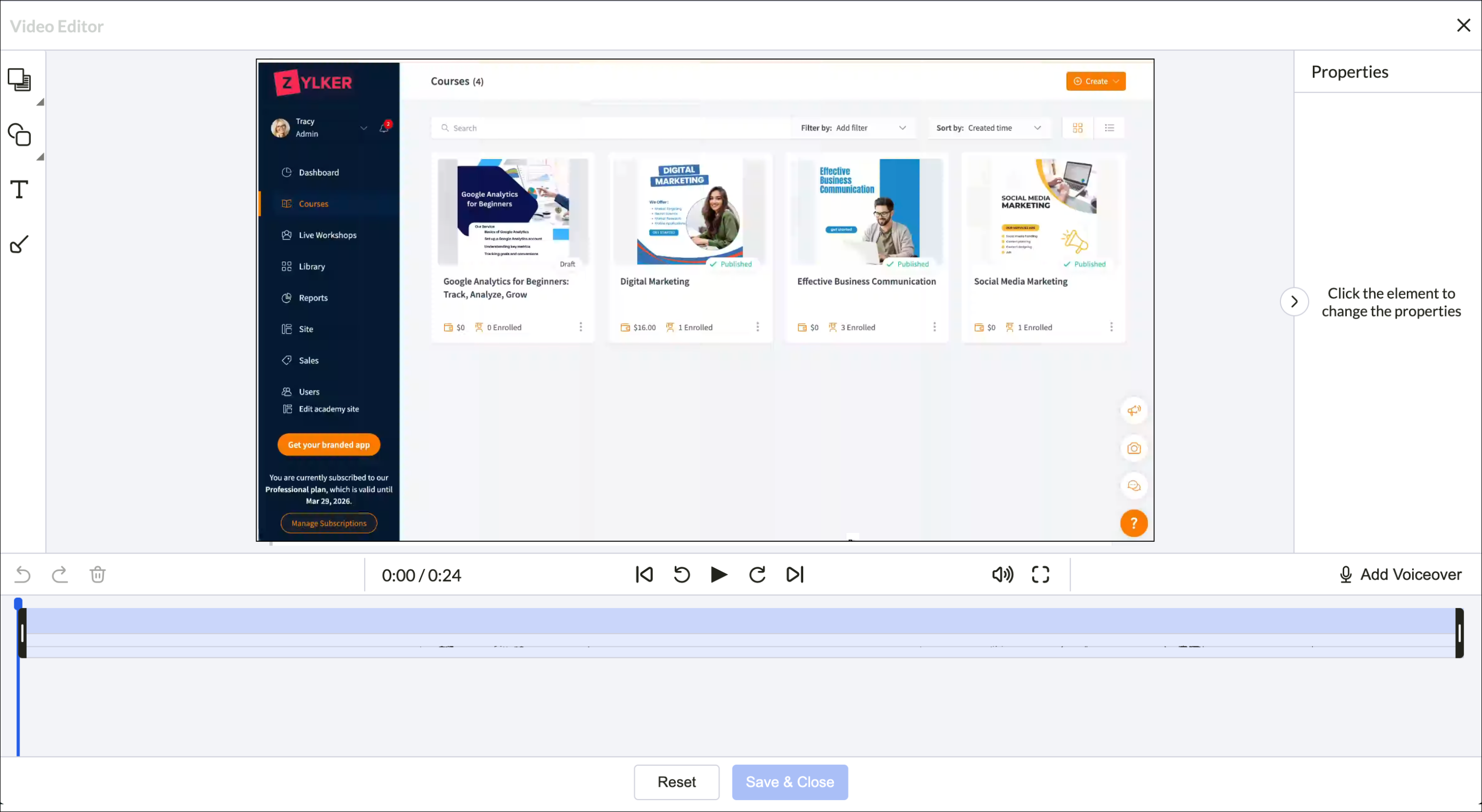
The video timeline at the bottom of the screen is a visual representation of your screen recording.
It has the following controls and options.
The video timeline at the bottom of the screen is a visual representation of your screen recording.
It has the following controls and options.
Undo, Redo, and Delete
Current Timestamp
Navigation Preview
Pause, Rewind, and Forward
Mute during playback and Full screen
Trim Video
You can annotate your videos using various visual elements.
Here’s a detailed overview of each tool:
Masking Tool
Enables you to blur or block sensitive data, such as learners’ personal information or payment details.
Highlighting Tool
Lets you emphasize the required parts so that the support team doesn’t overlook important details.
Text Tool
Allows you to add text information directly into the video.
Arrow Tool
Allows you to insert arrows or pointers into the video for added emphasis. If your screen has multiple issues that need to be noted by the support team, you can use pointers to draw their attention.
Voiceover
Lets you add voice narration directly to your recording.
Current Timestamp
Navigation Preview
Pause, Rewind, and Forward
Mute during playback and Full screen
Trim Video
You can annotate your videos using various visual elements.
Here’s a detailed overview of each tool:
Masking Tool
Enables you to blur or block sensitive data, such as learners’ personal information or payment details.
Highlighting Tool
Lets you emphasize the required parts so that the support team doesn’t overlook important details.
Text Tool
Allows you to add text information directly into the video.
Arrow Tool
Allows you to insert arrows or pointers into the video for added emphasis. If your screen has multiple issues that need to be noted by the support team, you can use pointers to draw their attention.
Voiceover
Lets you add voice narration directly to your recording.